PC Parts Compatibility Guide UK: How to Check Your Components Work Together
Advertisement
Building a PC is straightforward — until you discover the motherboard you bought doesn't support your CPU, or the GPU physically won't fit in the case. PC parts compatibility is the single biggest source of wasted money and frustration for UK builders, whether you're buying new or sourcing used parts from the UK second-hand market.
This guide covers every compatibility check you need to make before you buy. Socket types, RAM generations, GPU clearance, PSU connectors, case sizing, cooler mounting, and storage interfaces — we'll walk through each one with the specific UK-market context that matters in 2026. And if you'd rather skip the manual checking, you can use Koukan's free PC parts compatibility checker to verify everything automatically.
Why PC Parts Compatibility Matters
Incompatible parts don't just "not work" — they can actively damage components. Forcing a CPU into the wrong socket bends pins. Using the wrong modular PSU cables from a different unit can fry a GPU. Even something as simple as buying DDR5 RAM for a DDR4 motherboard means a wasted purchase and a return process.
In the UK used market, compatibility mistakes are especially costly. Most private sellers don't accept returns, and even marketplace platforms have limited protection once you've opened and attempted to install a part. Getting your PC parts compatibility check right before you buy is non-negotiable.
Common Compatibility Mistakes — UK Builders
CPU + Motherboard Socket Compatibility
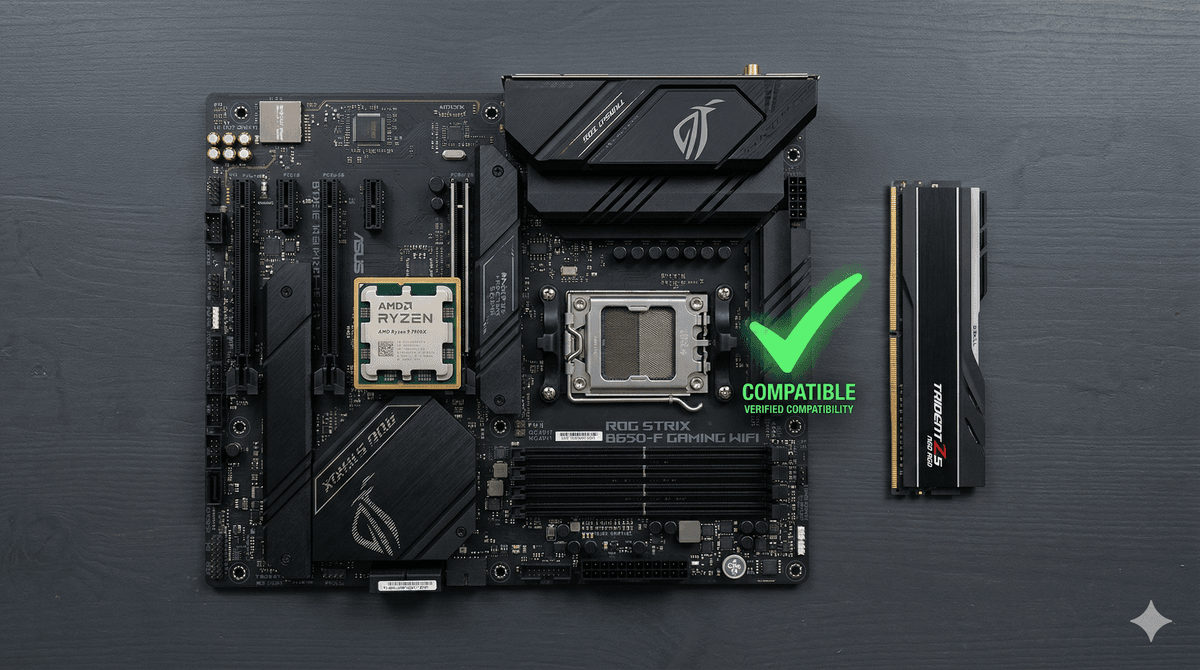
The CPU socket is the single most important compatibility factor. Every processor is designed for exactly one socket type, and motherboards support exactly one socket. Get this wrong and nothing else matters — the chip physically won't fit.
Current sockets in 2026
The UK market in 2026 is split across several active platforms. Here's what you'll encounter when browsing Koukan listings or other UK marketplaces:
CPU Socket Reference — UK Market 2026
The critical check: confirm the exact socket printed on the motherboard product page matches the socket listed for your CPU. Don't rely on generation names alone — Intel's naming is especially confusing, with "12th Gen" and "13th Gen" sharing LGA 1700 but "14th Gen" (Core Ultra) moving to LGA 1851.
If you're buying used, our guide to buying used CPUs online in the UK covers how to verify CPU condition and compatibility before you commit. The easiest approach? Drop both parts into the Koukan PC Builder and it'll flag any socket mismatch instantly.
RAM Compatibility: DDR4 vs DDR5, Speed, and Capacity
RAM compatibility is deceptively simple on the surface — DDR4 and DDR5 are physically different and won't fit each other's slots. But there are subtleties around speed support, capacity limits, and dual-channel configuration that catch people out.
DDR4 vs DDR5: which do you need?
This is determined entirely by your motherboard. AM4 and LGA 1200 motherboards use DDR4 only. AM5 and LGA 1851 use DDR5 only. LGA 1700 is the awkward one — the chipset supports both, but each individual motherboard is built for one or the other. A "B660 DDR4" board and a "B660 DDR5" board look almost identical but accept completely different RAM.
Speed and XMP/EXPO support
Every motherboard has a maximum supported RAM speed. Running RAM faster than what the board supports won't damage anything — the RAM will simply downclock — but you'll be paying for speed you can't use. For DDR4 builds, 3200–3600 MHz is the sweet spot. For DDR5, 5600–6000 MHz offers the best balance of price and performance in the 2026 UK market.
Check your motherboard's QVL (Qualified Vendor List) if you want guaranteed compatibility, or use the Koukan compatibility checker to verify your RAM and motherboard pairing automatically.
Capacity and slot configuration
Most modern motherboards support 128 GB across four slots, but budget boards sometimes cap at 64 GB. The key rule: always install RAM in matched pairs for dual-channel. Two 8 GB sticks will outperform a single 16 GB stick in almost every scenario. If your board has four slots, install your pair in slots 2 and 4 (counting from the CPU) — this is the standard dual-channel configuration for most boards.
GPU Clearance and PCIe Compatibility
Modern GPUs are enormous. A 2026 high-end card can be 350 mm+ long, take up 3.5 expansion slots, and weigh over a kilogram. Physical clearance is a real concern — especially in the compact cases that are popular in the UK market where space is at a premium.
Length clearance
Every case lists a maximum GPU length in its specs, and every GPU lists its physical length. Compare these numbers before you buy. Budget mid-towers typically support GPUs up to 330–350 mm. Compact and micro-ATX cases may only support 250–300 mm. Triple-fan flagships like (unnamed high-end cards) regularly exceed 330 mm.
Slot width and cooling clearance
A "2.5 slot" or "3 slot" GPU doesn't just fill those expansion brackets — it also needs airflow space below. If you're installing in a tight case, check whether the GPU cooler will block the bottom fans or press against the PSU shroud.
PCIe generation
PCIe is backwards compatible. A PCIe 4.0 GPU works perfectly in a PCIe 3.0 slot — it just runs at PCIe 3.0 speeds. For current GPUs, the bandwidth difference between PCIe 3.0 x16 and PCIe 4.0 x16 is minimal in real-world gaming (typically 1–3% at most). So if you're buying a used GPU in the UK, don't worry about PCIe generation matching. Any modern dedicated GPU in a x16 slot will perform as expected.
The exception: avoid x4 or x1 slots for a GPU. Some motherboards have a second full-length slot that's only wired for x4 electrically. Check the motherboard manual.
PSU Wattage and Connector Requirements
The power supply unit needs to deliver enough wattage for your entire system and have the right physical connectors for your specific components. Both checks matter.
Wattage calculation
Add up the TDP of your CPU and GPU, then add roughly 100–150 W for everything else (motherboard, RAM, fans, storage, peripherals). Your PSU should be rated for at least 20% above this total to run efficiently and leave headroom for transient power spikes. Here are typical UK build requirements in 2026:
PSU Wattage Guide by Build Tier
Connector types
GPUs require dedicated power connectors from the PSU — either traditional 6+2 pin PCIe connectors or the newer 12VHPWR / 12V-2x6 connector used by recent high-end cards. Check your GPU's power requirement and confirm your PSU has the right connectors.
Critical safety warning: Never use modular PSU cables from a different PSU model. The pinout on the PSU side varies between manufacturers and even between models from the same brand. Using the wrong cable can send 12V down a 5V rail and destroy drives, GPUs, or motherboards instantly. This is one of the most dangerous compatibility mistakes you can make — especially relevant if you're buying used PC parts and the original cables might be missing.
Case Form Factor and Motherboard Sizing
Case and motherboard form factor compatibility is usually straightforward, but it catches people who buy compact cases without checking board size. The standard sizes, from smallest to largest:
Form Factor Compatibility Matrix
Larger boards fit in larger cases — an ATX board fits an ATX case but not a micro-ATX case. Smaller boards fit in any case that size or larger — a Mini-ITX board works in an ATX tower, though it'll leave a lot of empty space.
Beyond the board itself, check your case's clearances for GPU length, CPU cooler height, and PSU length. These are all listed in the case specifications. For budget gaming PC builds, a standard ATX mid-tower is the safest bet — they're widely available and accommodate practically everything.
CPU Cooler Socket and Height Compatibility
CPU coolers have two compatibility factors: socket mounting and height clearance inside the case.
Socket mounting
Each cooler includes mounting hardware for specific sockets. Most tower coolers support multiple sockets out of the box — but you need to check. The shift from AM4 to AM5 was mostly backwards-compatible (same mounting holes), but going from LGA 1700 to LGA 1851 also maintained compatibility. Intel's LGA 1200 to LGA 1700 shift, however, changed the mounting pattern, and many older coolers needed a free bracket upgrade from the manufacturer.
If buying a used cooler, confirm the specific mounting kit is included. A cooler without the right bracket is useless until you source one — and aftermarket bracket kits from certain brands can take weeks to arrive in the UK.
Height clearance
Large tower coolers can be 160–170 mm tall. Your case spec lists a maximum CPU cooler height — typically 160–165 mm for standard ATX mid-towers and as low as 60–70 mm for slim ITX cases. AIO liquid coolers avoid the height issue but require radiator mounting space (typically top or front panel) — check your case supports the radiator size (120 mm, 240 mm, 280 mm, or 360 mm).
Storage Interface Compatibility: NVMe vs SATA M.2
M.2 is a physical form factor, not a protocol. An M.2 slot on your motherboard might support NVMe drives, SATA M.2 drives, or both — depending on the specific slot and the motherboard's chipset implementation.
NVMe vs SATA M.2
NVMe M.2 drives use the PCIe bus and are dramatically faster (3,500–7,000+ MB/s on current drives). SATA M.2 drives use the legacy SATA protocol at SATA speeds (~550 MB/s) despite fitting the same physical slot. The keying is slightly different — NVMe drives have an "M key" notch, SATA M.2 drives have both "B and M key" notches — but some slots accept both physically.
The trap: a SATA-only M.2 slot will accept an NVMe drive physically but won't detect it. Check your motherboard manual to confirm which protocol each M.2 slot supports. On most 2026-era boards, the primary M.2 slot (closest to the CPU) is NVMe-only, and secondary slots may be SATA, NVMe, or both.
Shared bandwidth and lane allocation
Some motherboard M.2 slots share bandwidth with SATA ports. If you install an NVMe drive in slot 2, SATA ports 5 and 6 on the board might be disabled. This is documented in the motherboard manual but easy to miss. If you're planning multiple drives, check which ports share lanes.
PCIe generation for NVMe
Just like GPUs, NVMe drives are PCIe generation-specific. A PCIe 4.0 NVMe drive works in a PCIe 3.0 M.2 slot at PCIe 3.0 speeds. For budget builds using older platforms, this rarely matters — PCIe 3.0 NVMe is still dramatically faster than SATA. For high-end builds, check whether your primary M.2 slot runs at PCIe 4.0 or 5.0 if you're paying for a drive that can use that bandwidth.
How to Check PC Parts Compatibility for Free
Manually checking every compatibility factor across six or more components is tedious and error-prone. That's why we built the Koukan PC Builder — a free PC parts compatibility checker designed for UK builders.
Go to the Koukan PC Builder and select your components one by one — CPU, motherboard, RAM, GPU, PSU, case, cooler, storage.
As you add parts, the tool automatically filters out incompatible options. No socket mismatch, no DDR generation conflict, no form factor clash.
The tool flags potential issues in real-time: wattage warnings, clearance notes, and shared-lane alerts.
Once your build is complete, you get a full compatibility summary you can save, share, or use as a shopping list.
Browse Koukan's UK marketplace listings directly from the builder to find the best prices on compatible parts.
Whether you're planning a £200 budget gaming build or a high-end workstation, the compatibility checker catches the issues this article describes — automatically, before you spend a penny.
The Complete PC Parts Compatibility Checklist
Before you confirm any purchase — new or used — run through this checklist. Every "no" is a potential compatibility failure:
Or skip the manual checklist entirely — the Koukan PC Builder runs all these checks automatically as you select components.
FAQ: PC Parts Compatibility (UK)
How do I check if my PC parts are compatible?
Check that your CPU socket matches your motherboard, your RAM generation matches the board, your GPU fits the case, and your PSU has enough wattage and the right connectors. The fastest way is to use the Koukan PC Builder which checks everything automatically.
Are DDR4 and DDR5 RAM interchangeable?
No. They're physically different with different notch positions. A DDR4 stick won't fit a DDR5 slot. Your motherboard supports one or the other — check the specific model before buying.
Will a PCIe 4.0 GPU work in a PCIe 3.0 motherboard?
Yes. PCIe is fully backwards compatible. The performance difference in gaming is typically 1–3%, so this is rarely a concern for UK builders using older platforms.
What happens if my PSU doesn't have enough wattage?
System instability, random shutdowns under load, and potential component damage. Your PSU should be rated for at least 20% above your total system draw.
Can I use modular PSU cables from a different PSU?
Absolutely not. Different PSU models use different pinouts on the modular side. Using the wrong cable can destroy GPUs, drives, and motherboards by sending incorrect voltages. Only ever use cables that came with your specific unit.
Is there a free PC parts compatibility checker for UK builds?
Yes — the Koukan PC Builder is free, designed for UK builders, and automatically filters incompatible parts as you select components.
Do I need to worry about NVMe vs SATA when buying an M.2 SSD?
Yes. An NVMe drive in a SATA-only M.2 slot won't be detected despite fitting physically. Check your motherboard manual to confirm which protocol each M.2 slot supports.
What is the most common PC parts compatibility mistake?
Mismatching CPU socket and motherboard — especially on Intel platforms where naming is confusing. The second most common is buying the wrong RAM generation (DDR4 vs DDR5) for LGA 1700 boards that come in both variants.
Start Your Compatible Build
PC parts compatibility doesn't have to be complicated. Whether you're sourcing used parts from the UK market or buying new, the rules are consistent: match your socket, match your RAM generation, check your clearances, verify your PSU, and confirm your storage interfaces.
Better yet, let the Koukan PC Builder handle the compatibility checking while you focus on picking the best parts for your budget. It's free, it's built for UK builders, and it prevents every mistake covered in this guide — automatically.
Advertisement