Build a Cheap Gaming PC with Used Parts: UK Guide (2026)
Advertisement
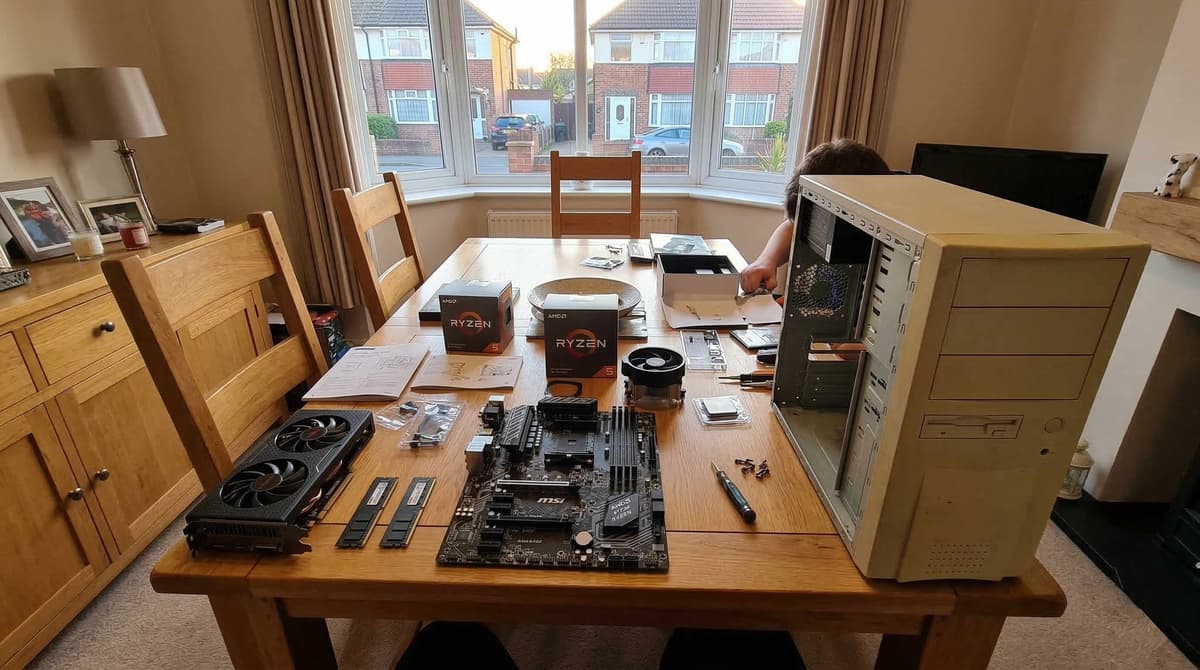
You can build a genuinely capable gaming PC for under £300 using used parts in 2026. Not a "retro gaming" machine. Not a compromise box that struggles with modern titles. A real 1080p gaming rig that handles Fortnite, Valorant, CS2, and even heavier titles at playable frame rates — all sourced from the UK second-hand market.
The UK used parts market in 2026 is stacked with ex-gaming GPUs, surplus CPUs from upgrade cycles, and DDR4 kits that people dumped when they moved to DDR5. Prices have never been better for budget builders. If you know what to buy used and what to buy new, you can stretch every pound dramatically further than buying retail.
This guide gives you three complete builds at different price points — £200, £350, and £500 — with full parts lists, expected performance, and UK-specific sourcing advice. Before you start, make sure you've read our complete guide to buying used PC parts safely in the UK and understand which PC parts are safe to buy used.
The £200 Build: Entry 1080p Gaming
This is the "prove it can be done" build — a full gaming PC for roughly the price of two new AAA games. Every part here is widely available on the UK used market in early 2026. You won't be running ray tracing, but you will be gaming at 1080p medium-to-high settings in virtually every popular competitive title and most single-player games from the last few years.
£200 Build — Parts List
Why these parts
The i5-10400F is a 6-core, 12-thread chip that Intel launched at £150+ — in 2026, you can find them for under £40 because entire platforms have been replaced. It's still more than enough for gaming. The AMD alternative, the Ryzen 5 3600, offers comparable performance and slots into the incredibly cheap B450 boards now flooding the second-hand market. For deeper CPU buying advice, see our guide to buying used CPUs online in the UK.
The GTX 1660 Super remains one of the best budget 1080p cards ever made. In 2026, they've dropped to £55–70 used. The RX 580 8GB is even cheaper and still handles 1080p well, though it draws more power and runs hotter. Check our used GPU buying guide before purchasing either.
Expected performance
At 1080p medium-to-high settings, this build delivers solid frame rates in the games most UK players actually play:
- Fortnite: 90–120 FPS (Performance mode: 144+)
- Valorant: 180–250 FPS
- CS2: 120–180 FPS
- GTA V: 80–100 FPS (high settings)
- Hogwarts Legacy: 40–55 FPS (medium settings)
- Cyberpunk 2077: 35–50 FPS (medium, no RT)
For competitive games, you're well above the 60 FPS threshold that makes gameplay feel smooth. For demanding AAA titles, you may need to drop to medium or tweak individual settings, but you're still getting a genuine gaming experience.
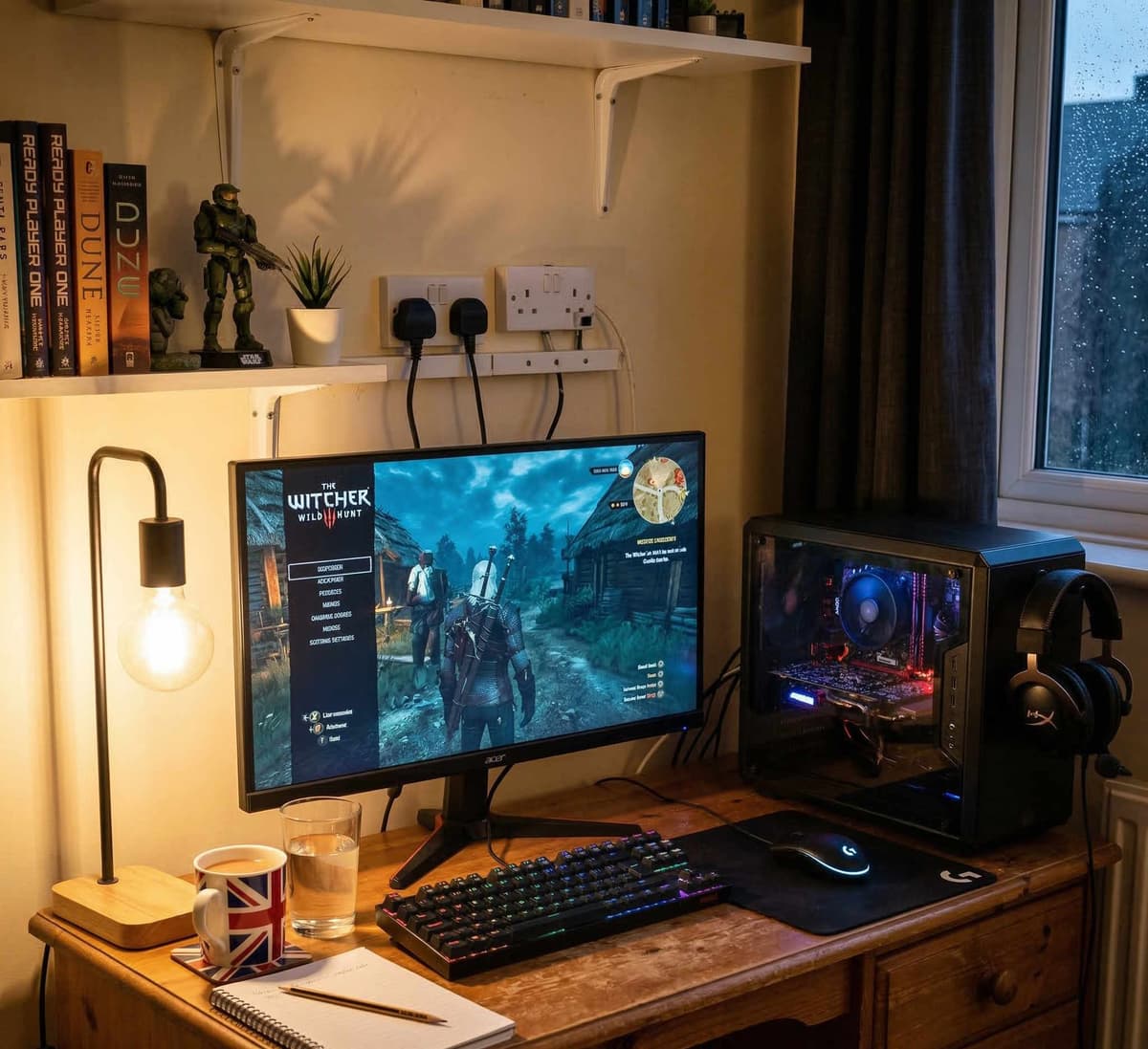
Everything you need for a capable 1080p gaming PC — sourced used for under £265.
The £350 Build: Solid 1080p / Entry 1440p
Step up £100–150 and the performance jump is dramatic. This tier moves you from "perfectly playable" to "genuinely impressive." You're getting hardware that was mid-to-high-end just 2–3 years ago, and the used market prices in the UK have cratered as people upgrade to current-gen platforms.
£350 Build — Parts List
Why these parts
The Ryzen 5 5600 is arguably the best value CPU in the entire used market right now. It was already excellent at launch, and now that AM5 has taken over, these chips are available for £55–65 across the UK. The Intel i5-12400F is the competing pick and offers slightly better single-thread performance with similarly cheap B660 boards. Either will handle any GPU you pair with them at this price range without bottlenecking.
The GPU is where this build shines. The RTX 3060 12GB gives you DLSS and ray tracing capability for around £120–140 used. The RX 6700 XT is slightly faster in raw rasterisation and often available for £130–160. For finding the right GPU-CPU pairing, check our best GPU and CPU combinations guide.
Expected performance
At 1080p high settings, you're comfortably above 60 FPS in essentially everything. At 1440p, competitive games still fly and demanding titles are playable with some tweaking:
- Fortnite (1080p High): 140–180 FPS
- Valorant (1080p High): 300+ FPS
- CS2 (1080p High): 180–250 FPS
- Cyberpunk 2077 (1080p High, no RT): 60–80 FPS
- Hogwarts Legacy (1080p High): 60–75 FPS
- Cyberpunk 2077 (1440p Medium): 45–60 FPS
- Fortnite (1440p High): 90–120 FPS
This is the sweet spot for most UK gamers. You've got headroom for a 144Hz 1080p monitor and it's capable enough for 1440p gaming if you're willing to adjust settings in the most demanding titles.
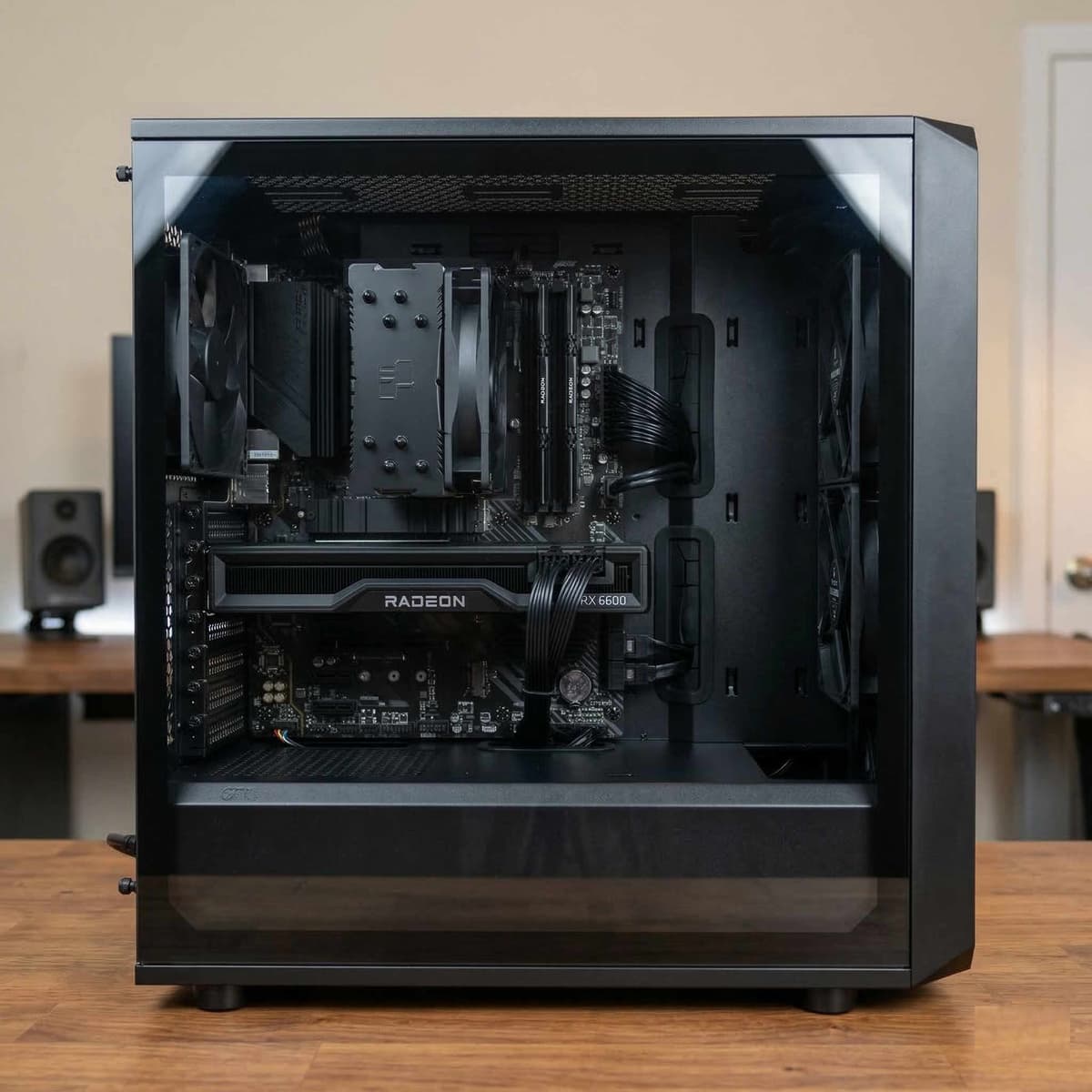
The £350 tier unlocks genuine 1080p high performance and entry 1440p — a huge jump from the budget build.
The £500 Build: 1440p Beast
This is where the used market truly outperforms new builds. £500 from new parts would get you a mid-range system at best. With used parts, you're assembling hardware that cost £1,200+ when it launched — and it's still powerful enough to handle 1440p high settings in 2026.
£500 Build — Parts List
Why these parts
The Ryzen 5 5600X is the binned version of the 5600 with slightly higher clocks — and the price difference used is often only £5–10. The i5-12600K adds performance cores (6P+4E) and overclocking support, though you'll want a decent tower cooler and a Z690 board to unlock that. For most builders, the 5600X on a B550 is the simpler option.
The star of this build is the GPU. The RTX 3070 was the definitive 1440p card of its generation and offers DLSS for a free performance uplift. The RX 6800 XT is faster in raw rasterisation and comes with 16GB VRAM — increasingly important as modern games push texture memory higher. Prices vary: the 3070 sits around £180–220 while the 6800 XT ranges from £220–280 depending on model and condition. Read our used GPU buying guide before pulling the trigger.
Expected performance
- Fortnite (1440p High): 120–160 FPS
- Valorant (1440p High): 300+ FPS
- CS2 (1440p High): 200–280 FPS
- Cyberpunk 2077 (1440p High, DLSS Quality): 65–85 FPS
- Hogwarts Legacy (1440p High): 65–80 FPS
- Elden Ring (1440p High): 55–60 FPS (engine limited)
- Call of Duty (1440p High): 100–140 FPS
At this price, you're gaming at 1440p high settings in essentially every title released up to 2026. Pair it with a 1440p 144Hz monitor and you've got a setup that'll feel premium by any standard.
What to Buy Used vs New
Not every component carries the same risk when buying second-hand. Here's the breakdown based on real UK market experience and failure rates:
Safe to buy used
- CPU: CPUs are incredibly robust. They either work or they don't — there's almost no "partial failure." An i5-10400F that worked yesterday will work tomorrow. The main risk is bent pins on AMD chips (check photos carefully).
- GPU: The highest-value used purchase, but requires the most verification. Always ask for proof of working temps and check for fan noise. See our full GPU buying guide.
- RAM: DDR4 sticks are extremely durable. Stick to known kit brands and you'll be fine. Run MemTest86 when you receive them.
- Case: It's metal and plastic. Cosmetic scratches don't affect performance. Check that all standoffs and drive cages are included.
- CPU cooler: Tower coolers and AIO liquid coolers are generally fine used. Replace thermal paste on arrival.
Buy new (or be very cautious used)
- PSU: A failing power supply can damage every other component. Capacitor degradation is invisible externally. Budget an extra £25–45 for a new 80+ Bronze unit — it's the cheapest insurance you can buy for your build. If you must buy used, stick to high-end units under 3 years old with proof of purchase.
- SSD: NVMe drives have finite write endurance. If the seller can provide SMART data or CrystalDiskInfo screenshots showing health above 90%, used is fine. Without that data, buy new — a 500GB NVMe is only £20–25 new anyway.
- Thermal paste: Always apply fresh. A tube costs £3–5 and lasts multiple builds.
For a deeper dive on every component category, read our dedicated guide: Which PC parts are safe to buy used?
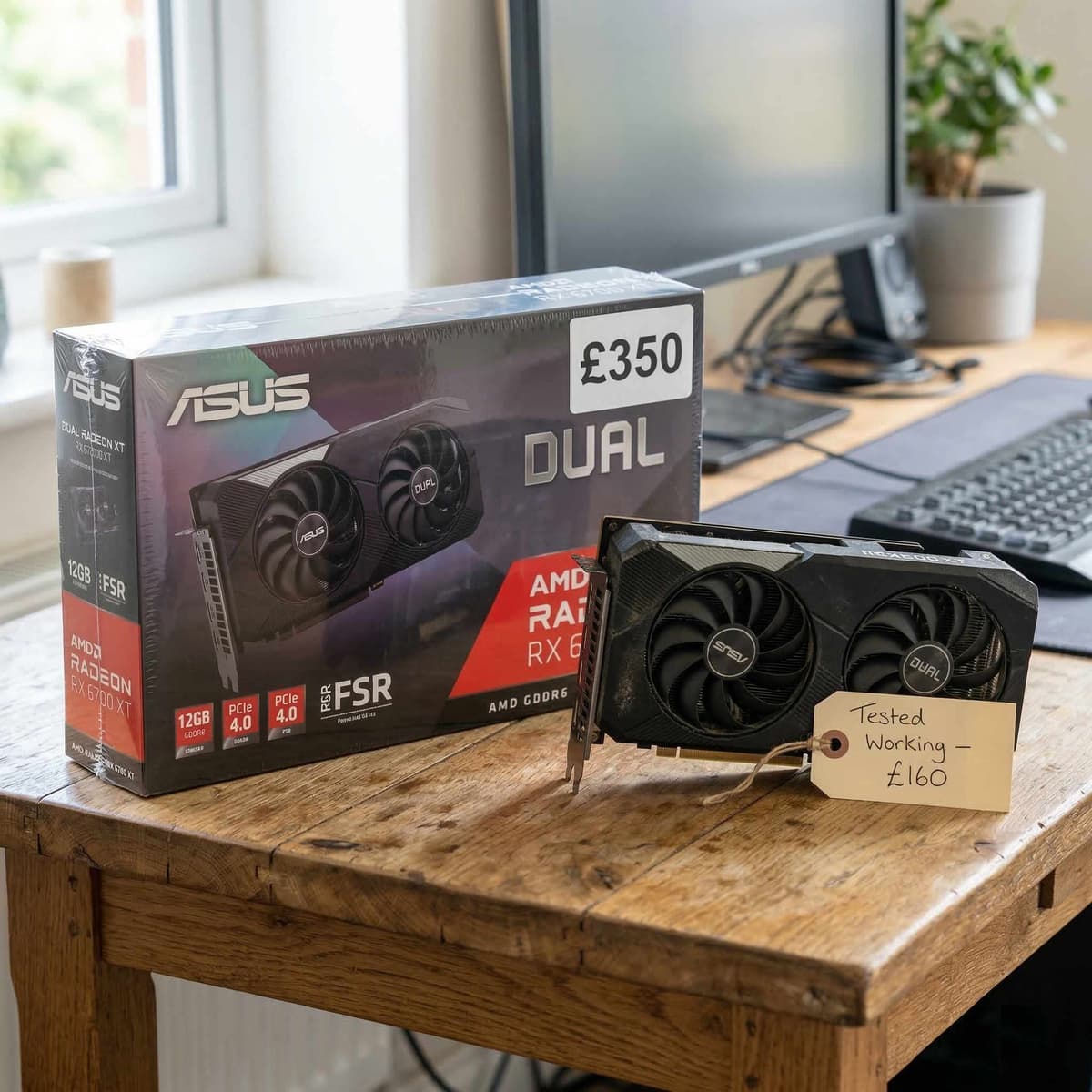
CPUs and RAM are near-zero risk used purchases. PSUs are the one component worth buying new.
Where to Source Used Parts in the UK
The UK has a surprisingly good ecosystem for used PC parts. Each platform has different strengths and risks:
Koukan
Built specifically for buying and selling used PC components in the UK. Every listing is categorised by component type with standardised condition descriptions and buyer protection. Because it's focused on PC hardware, you avoid the noise of general marketplaces and the listings tend to include the technical detail that actually matters — exact model, VRAM, benchmarks, and SMART data.
eBay UK
The largest volume of listings and the best buyer protection through eBay's Money Back Guarantee. Filter by "UK only" and check completed listings to understand real sold prices (not optimistic asking prices). Stick to sellers with established feedback and be wary of "no returns" on high-value items. eBay fees mean sellers price slightly higher, but the protection is worth it for expensive GPUs.
Facebook Marketplace
Good for local collection, which lets you test components before paying. Prices are often lower than eBay because there are no fees. The downside: no structured buyer protection, and the quality of listings varies enormously. Always meet in a public place or take someone with you for higher-value purchases.
CEX
CEX sells used GPUs, CPUs, and RAM with a 24-month warranty. Prices are typically 10–20% higher than private sellers, but that warranty is valuable if you're nervous about buying used. Stock varies heavily by location — check online availability and reserve before travelling.
Local PC repair shops
Independent PC shops sometimes sell pulled components from upgrades or dead systems. Prices can be excellent because they want to clear stock, and you can often test before buying. Ask — even if they don't advertise used parts, many have a shelf of components in the back.
For maximum savings, combine sources: buy your CPU and RAM from whoever has the best price, source the GPU from a platform with decent buyer protection, and buy the PSU and SSD new from a UK retailer.
Building Tips for First-Timers
If this is your first PC build, the process is simpler than it looks. Modern components are designed to slot together with minimal force, and most connections are keyed so you physically can't plug them in wrong. Here's what you need to know:
ESD precautions
Electrostatic discharge can damage components, though the risk is lower than the internet suggests. The essentials: work on a hard surface (not carpet), touch the metal case or PSU casing periodically to discharge, and handle components by the edges or heatsinks rather than the circuit boards. An anti-static wrist strap costs £3–5 and eliminates the worry entirely.
Test outside the case first
Before mounting everything inside the case, do a "bench test." Place the motherboard on its box, install the CPU, cooler, one stick of RAM, and GPU, connect the PSU, and try to boot. If something is dead on arrival, you'll find out before spending an hour on cable management. This is especially important with used parts where DOA is a possibility (small, but worth checking).
CPU installation
Align the golden triangle on the CPU with the triangle on the socket (AMD) or align the notches on the CPU with the socket keys (Intel). The CPU should drop in with zero force. If you're pushing, something is misaligned. Lower the retention arm and apply thermal paste — a pea-sized dot in the centre is the standard method that works reliably.
Cable management basics
You don't need Instagram-worthy cables for your first build. The goal is airflow: keep cables out of the path between intake fans and the CPU/GPU. Route the 24-pin ATX and 8-pin CPU power cables behind the motherboard tray. Use the cable tie-down points in the case. Tidy enough that cables aren't touching fans is good enough.
POST troubleshooting
If the system doesn't POST (Power On Self Test — the first screen you see), don't panic. Work through these in order:
- Check that the 24-pin ATX and 8-pin CPU power connectors are fully seated (they click).
- Reseat the RAM — push firmly until both clips lock. Try one stick at a time in different slots.
- Reseat the GPU — make sure it's fully clicked into the PCIe slot and any power connectors are plugged in.
- Connect the monitor to the GPU output, not the motherboard (the F-suffix CPUs have no integrated graphics).
- Check the front panel connectors: the power button header needs to be on the correct pins. Consult your motherboard manual.
- If available, check motherboard debug LEDs or listen for beep codes — these tell you exactly what's failing.
Most first-build "failures" are a loose cable or incorrectly seated RAM. It's almost never a dead component.
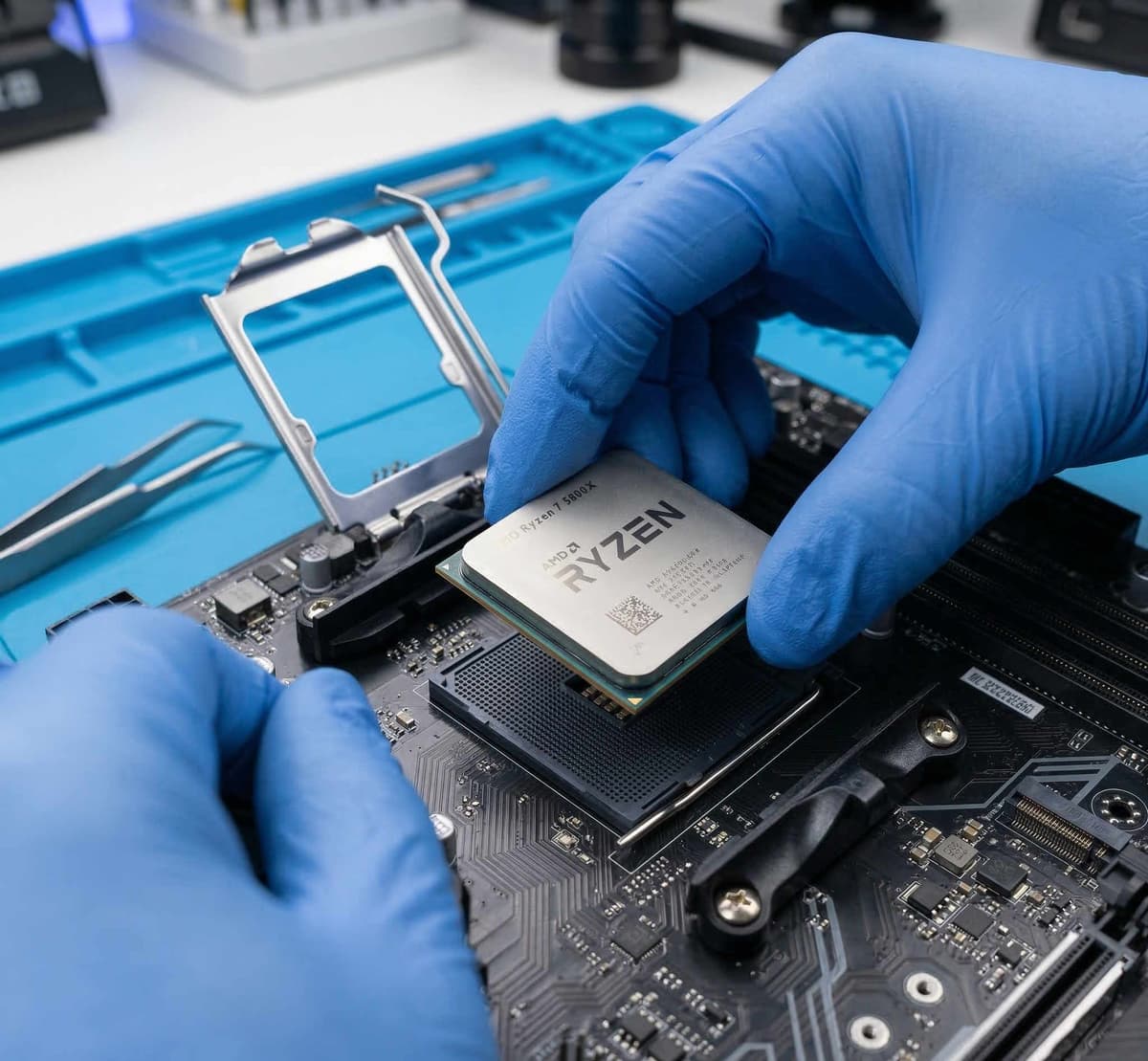
Test outside the case first — it saves hours of troubleshooting if a used part arrives DOA.
A note on the AMD BC-250
You may have seen the AMD BC-250 appearing on the UK used market — these are ex-mining boards with an integrated GPU. While they can be tempting at their very low prices, they come with significant caveats around driver support, cooling, and long-term reliability. Before considering one for a budget build, read our complete AMD BC-250 guide to understand the trade-offs.
Advertisement