How to Test Every Used PC Part Before You Build: Complete UK Guide (2026)
Advertisement
The most expensive used PC parts aren't the ones with the highest price tags — they're the faulty ones you discover after you've already built the system. Testing every component before it goes into a case costs an hour. Skipping that hour can cost you weeks of fault-finding and a return dispute.
This is the complete UK buyer's testing guide for second-hand PC components. We cover GPU, CPU, RAM, SSD, HDD, motherboard, and PSU — with the free tools, the exact tests, and the pass/fail numbers for each. For the broader buying framework first, read our guide to buying used PC parts safely in the UK. For a quick safety overview, is it safe to buy used PC parts in the UK? has the short answer.
What you need: the free diagnostic toolkit
Every tool below is free and actively maintained. Download them all before your parts arrive so you can move straight to testing on delivery day.
USB tip: load GPU-Z, CPU-Z, HWiNFO64, CrystalDiskInfo, and CrystalDiskMark onto a USB drive. For collection testing at a seller's house, you can run them without installing anything. MemTest86 needs its own bootable USB (ISO provided on the official site).
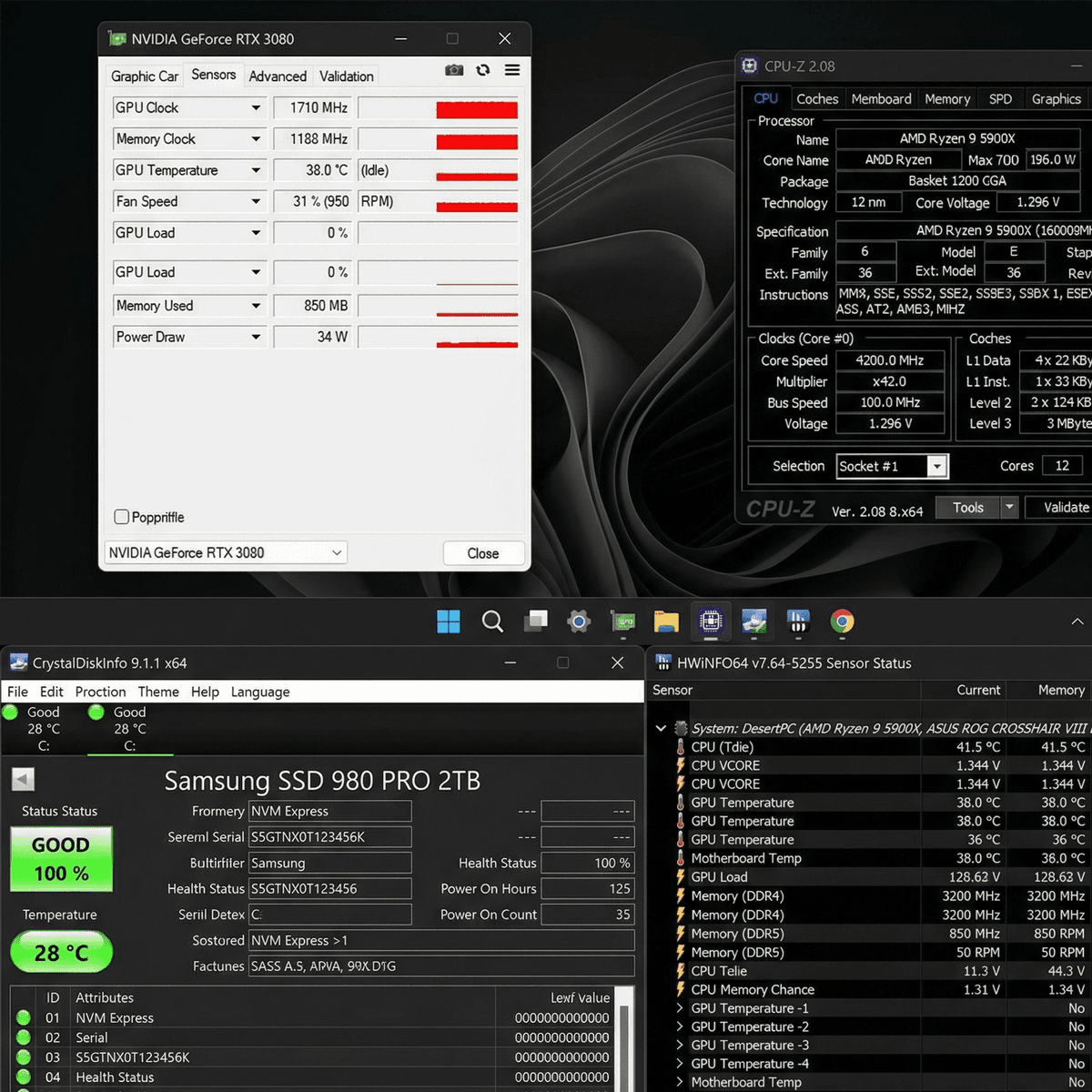
The full free toolkit — download everything before parts arrive.
GPU testing (the most important station)
The GPU is the most common source of used-part regret — and the easiest to test thoroughly. Give this station the most time. For a dedicated deep-dive, read our full how to test a used GPU guide.
Step 1 — Identity check with GPU-Z
- Open GPU-Z and confirm the Name field matches the listed model exactly (e.g. "GeForce RTX 4070" not a cut-down variant).
- Verify Memory Size (VRAM) matches the listing — some variants ship with less.
- Check Memory Type: GDDR6/GDDR6X as expected for the model.
- Click the ? button next to the GPU name — if it says "[FAKE]" next to any field, stop immediately.
Step 2 — FurMark 10-minute stress test
- Open HWiNFO64 first and keep the sensor window visible on a second monitor (or in a corner of your screen).
- Launch FurMark, set resolution to your monitor's native, enable Xtreme Burn-in.
- Run for 10 minutes minimum. Watch for:
- Temperature: most modern GPUs should stay under 85°C. Over 90°C sustained suggests cooling problems.
- Core clock: should be stable under load, not throttling down repeatedly.
- Power draw: should be consistent, not spiking and dropping.
- Fan speed: fans should spin up smoothly — no grinding, stalling, or sudden stops.
Step 3 — Artefact check
- While FurMark runs, watch the on-screen donut render for sparkles, checkerboard patterns, or random coloured blocks — these are artefacts and a clear fail.
- After the stress test, play 20 minutes of a 3D game and watch for the same signs in motion.
- A driver crash, black screen, or hard system reset during any test is an automatic fail.
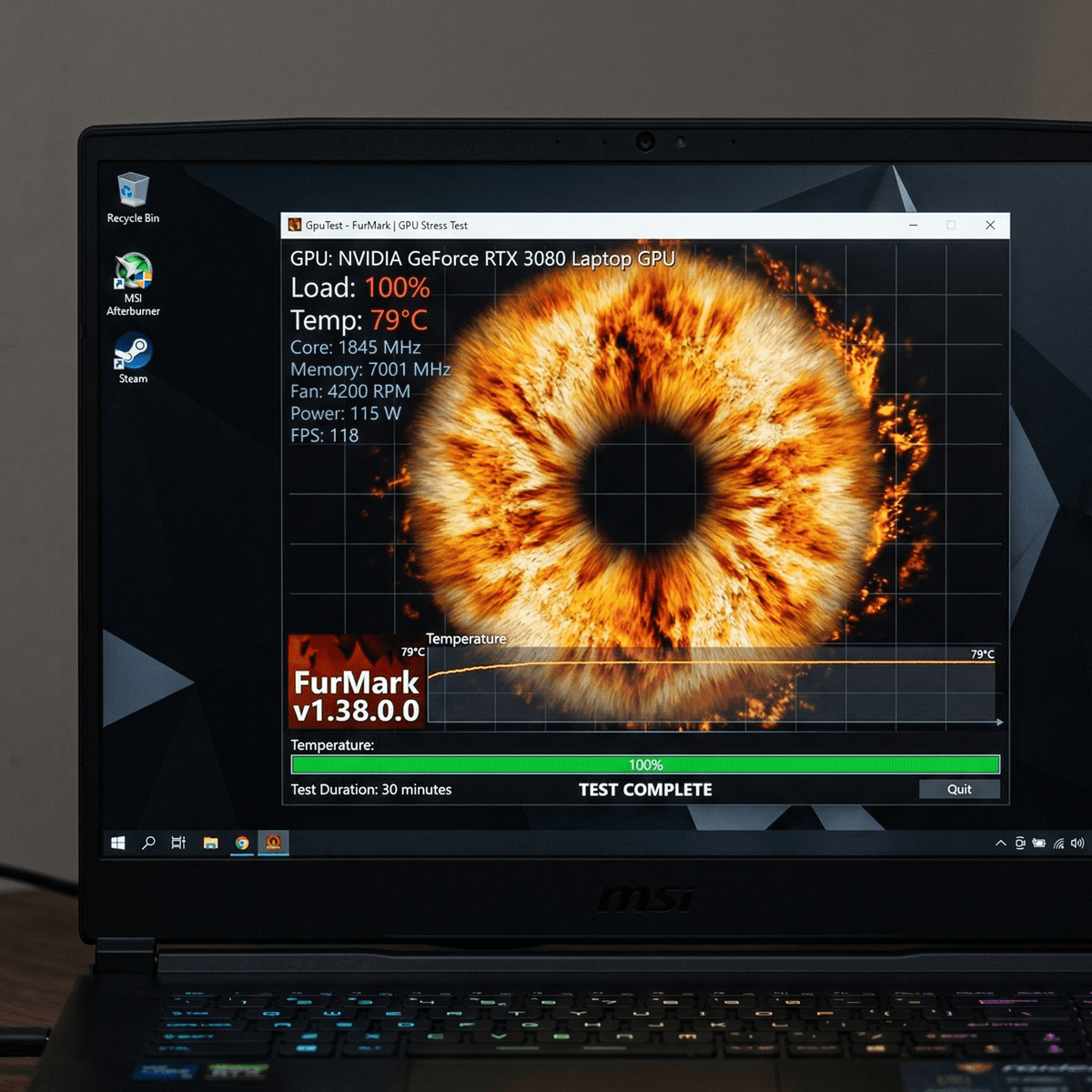
FurMark at full load — 10 minutes reveals what "works fine" hides.
Temperature pass
Under 85°C sustained. Cards throttling above 90°C have cooling issues.
Clock stability
Core clock should hold steady, not repeatedly drop due to power or heat limits.
Zero artefacts
No sparkles, blocks, or checkerboards at any point during or after load.
CPU testing
CPU failures in used parts are less common than GPUs, but fake or misrepresented chips do exist — especially on grey-market listings. The identity check catches that. The stress test catches everything else.
Step 1 — Identity check with CPU-Z
- Open CPU-Z and confirm the Name field matches the listed processor exactly — including the suffix (e.g. "Ryzen 5 7600X", not just "Ryzen 5 7600").
- Verify Cores and Threads match the specification for that CPU.
- Check Max TDP clock under the Clocks section — it should be close to the rated boost clock when under load.
- On the Mainboard tab, confirm the socket matches the claimed CPU platform (AM5, LGA1700, etc.).
Step 2 — Prime95 30-minute Small FFT test
- Open HWiNFO64 to the Sensors view and keep it visible. Note the CPU Package temperature sensor.
- Launch Prime95 and choose Small FFTs (highest heat generation, best for thermal ceiling test).
- Run for 30 minutes while watching:
- AMD Ryzen: Tdie should stay under 90°C. At 95°C the CPU throttles — cooling is insufficient.
- Intel Core: keep under 100°C. Above 100°C triggers throttling; above 105°C is a concern.
- Core clocks: should hold near rated boost. Consistent crash to base clock means thermal or power headroom issues.
- Any system crash, BSOD, or Prime95 error during this test indicates instability — that's a motherboard, RAM, or CPU fault worth investigating.
Cooler note: if the CPU is running hot in Prime95, check whether the cooler was properly seated before blaming the chip. A loose ILM or dry thermal paste will give the same symptoms as a damaged CPU — reseat and retest before drawing conclusions.
RAM testing
RAM errors are subtle — a faulty stick often boots fine but causes random crashes, corrupted files, and bizarre software behaviour that looks like anything but a hardware fault. MemTest86 eliminates that ambiguity.
Step 1 — One stick at a time
- Install one stick only in the first slot (check your motherboard manual — it's usually slot 2 for single-channel, or slots 2+4 for dual-channel from a 4-slot board).
- Boot into Windows and confirm capacity is detected correctly (e.g. 16 GB per stick, not 8 GB due to a failed rank).
- Repeat for each stick individually.
Step 2 — MemTest86 (bootable USB)
- Write the MemTest86 ISO to a USB drive (Rufus works well on Windows).
- Boot from the USB before Windows loads — MemTest86 runs entirely outside the OS for accurate results.
- Allow at least one full pass for a quick check. Pass count 1 with zero errors is the minimum acceptable. Run overnight (4–8 passes) for real confidence, especially on capacity you'll use for demanding workloads.
- Zero errors = pass. Any error = suspect stick. Isolate each stick individually if you have a kit.
Step 3 — XMP/EXPO profile test
- Enable XMP (Intel) or EXPO (AMD) in BIOS and confirm the system boots cleanly at the rated speed (e.g. DDR4-3200 or DDR5-6000).
- If enabling XMP causes instability, the sticks may not be compatible with your board at rated speeds — this is common with older DDR4 kits on new platforms.
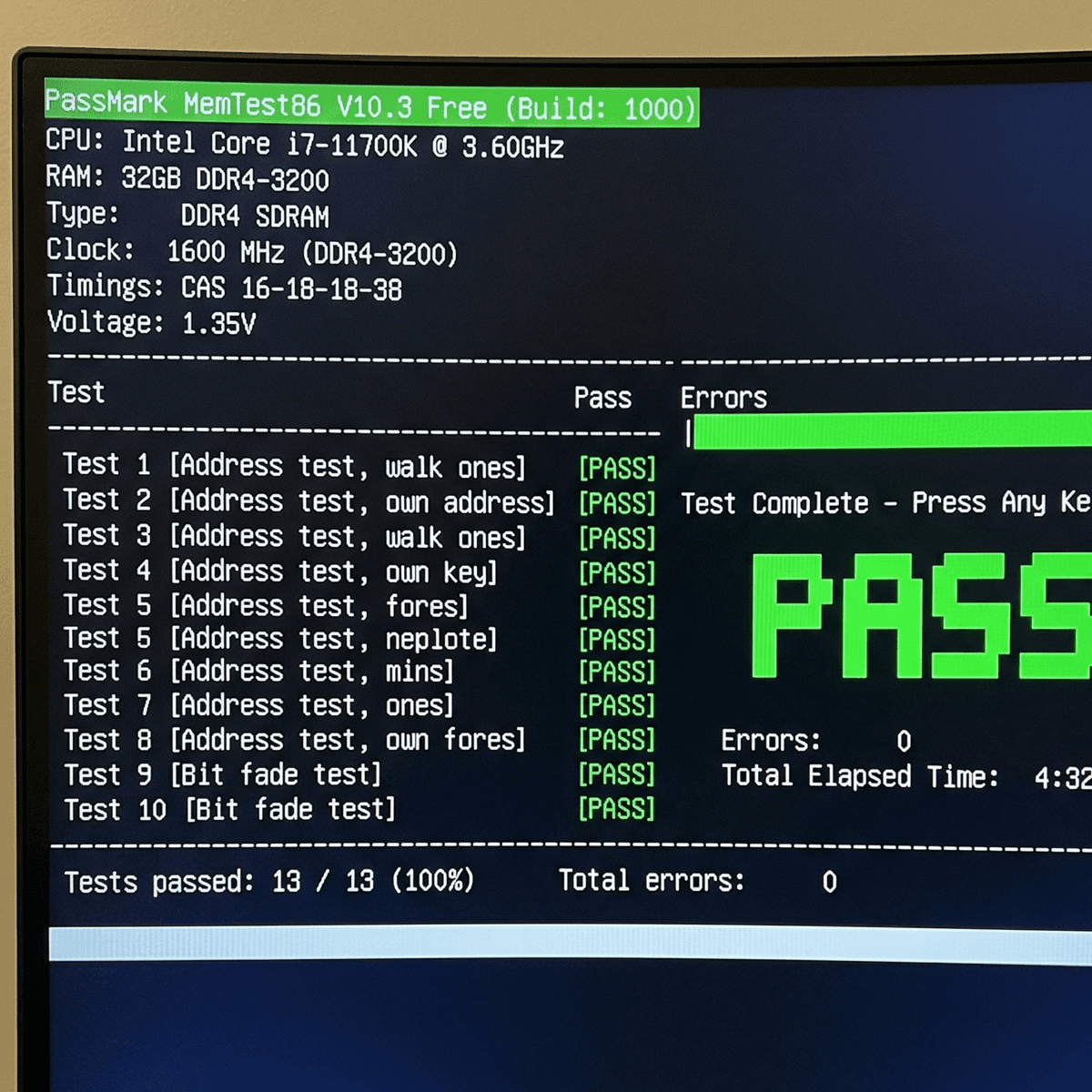
MemTest86 — one full pass minimum, zero errors required.
SSD and HDD testing
Storage is where degraded used parts hide in plain sight. An SSD can report good health while sitting at 90% TBW consumed. A hard drive can look fine until it starts throwing reallocated sectors. For a dedicated buying guide, read how to buy a used SSD in the UK.
Step 1 — CrystalDiskInfo health check
- Open CrystalDiskInfo and check the Health Status: aim for "Good" with a health percentage of 90% or above.
- For SSDs, check the Total Host Writes (or reads) against the drive's rated TBW. A 1TB SSD with 500 TBW rated and 480 TBW consumed is near end-of-life — factor that into price negotiations.
- For HDDs, look at Reallocated Sectors Count (attribute 05) and Pending Sector Count (attribute C5). Any non-zero value here is a warning. High values are an immediate reject.
- Note Power-On Hours: over 30,000 hours on an HDD is significant age; SSDs can tolerate higher hours but pair the figure with TBW.
Step 2 — CrystalDiskMark speed test
- Run CrystalDiskMark with the 1 GB test size.
- Compare the sequential read/write speeds against the drive's advertised specification. A NVMe SSD claiming 3,500 MB/s that only tests at 1,200 MB/s is either degraded or misrepresented.
- SATA SSDs should hit 500–550 MB/s sequential. 2.5" HDDs should be 100–160 MB/s. Significantly below these figures suggests a failing drive.
Step 3 — HDDSentinel (HDDs only)
- HDDSentinel provides a more readable health summary and surface scan for mechanical drives.
- Run a short surface scan to catch bad sectors that CrystalDiskInfo's SMART data may not yet reflect.
Quick pass/fail rule: CrystalDiskInfo shows "Good", health above 90%, and speed test within 20% of spec = pass. Anything else warrants deeper investigation or a price adjustment.
Motherboard testing
Motherboards are the hardest component to test thoroughly in isolation — faults can be subtle and intermittent. The goal here is a systematic slot-and-port sweep before committing to a full build.
POST video on every output
- If the board has an iGPU output (or onboard video), test video out from the motherboard first. If there's no iGPU, use a known-good discrete GPU.
- Test every display output on the board if accessible: usually HDMI and DisplayPort rear I/O.
Port sweep (systematic)
- USB ports: plug a drive into every rear USB port and confirm it mounts in Windows. Front panel USB headers are harder to test without a case but use a header-to-USB adapter if you have one.
- Audio jack: plug headphones into the 3.5mm audio jack and confirm sound works from the rear I/O panel.
Slot-level tests
- PCIe x16 slots: seat your GPU in the primary slot, confirm detection, run a short GPU test. If there's a second x16 slot, move the GPU there and repeat.
- M.2 slots: install an NVMe drive in each M.2 slot and confirm it's detected in BIOS and Windows Disk Management.
- RAM slots: with known-good RAM, test each slot pair. If a slot fails with healthy RAM, the slot is faulty.
VRM check: run a 15-minute Prime95 Small FFT test with HWiNFO open and watch the VRM temperature sensors. Over 100°C on VRMs under load indicates either inadequate cooling or a board that can't handle the power demands of your CPU long-term.
PSU testing
A failing PSU doesn't just break itself — it can take components with it. Never commission a used PSU without checking its rails. A £10 hardware tester is cheap insurance.
Step 1 — Hardware PSU tester (without a PC)
- Use a dedicated PSU tester with a 24-pin ATX breakout. It reads each rail voltage directly without needing a motherboard.
- Check the +12V rail (should read 11.4–12.6V), +5V (4.75–5.25V), and +3.3V (3.135–3.465V). Outside these tolerances = failing PSU.
- Listen to the fan under brief load: the fan should spin up smoothly with no grinding or squealing.
Step 2 — OCCT PSU test (15 minutes under system load)
- Install OCCT and select the Power Supply test preset (stresses CPU + GPU simultaneously for maximum system draw).
- Monitor voltage readings in HWiNFO (or OCCT's onboard monitoring) throughout the run.
- Pass criteria: no shutdowns, no voltage sag below ATX tolerances, no coil whine that wasn't present at idle.
- A system shutdown during the PSU test is the PSU protecting itself from its own instability. Document it and reject the unit.
+12V pass
11.4 V – 12.6 V under load. This rail powers GPU and CPU.
+5V pass
4.75 V – 5.25 V. Powers USB, storage controllers, and logic.
+3.3V pass
3.135 V – 3.465 V. Motherboard logic, RAM power rail.
Complete test-before-build checklist: the right order
Test in this order so that if something fails, you already know your other components are clean — and the fault diagnosis is fast.
- PSU first — hardware tester before anything else. A bad PSU poisons everything downstream.
- CPU + cooler — identity check in CPU-Z, then Prime95 30 mins with HWiNFO open.
- RAM each stick — install one at a time, MemTest86 one pass each. Combine and retest all sticks together.
- Motherboard ports — USB sweep, audio check, slot detection test with known-good components.
- GPU — GPU-Z identity, FurMark 10 minutes, artefact check.
- SSD/HDD — CrystalDiskInfo health, CrystalDiskMark speed, then install OS.
- Full system OCCT run — 15 minutes combined CPU + GPU + PSU stress as a final sign-off.
If something fails: dispute window tips
- Document before you tinker: take a screenshot or video of the failure the first time it happens. Don't spend hours troubleshooting before you have documentation.
- Don't open components unless you've already accepted you're keeping them — disassembly can void any informal return agreement.
- Keep the timeline tight: most private-sale platforms have dispute windows. Raise a concern in writing as soon as you identify a fault — not after you've spent three days trying to fix it.
- Compare against the listing: "not as described" (wrong model, VRAM, or specs) is a stronger basis for a return claim than "performance not as I expected."
For more on which components are worth buying used and where the real risk concentrations are, read which PC parts are safe to buy used.
FAQ
How long does it take to test a full set of used PC parts?
With efficient back-to-back testing (PSU tester while downloading tools, MemTest86 overnight) you can complete a full component qualification in under a day of active time. The RAM overnight pass adds clock hours but almost no effort.
Do I need to test RAM if it's in a matched kit?
Yes. Kits can ship with one faulty stick. Testing each stick individually takes 20 minutes per pass and has caught bad modules that were sold as part of an "unused kit." Don't skip it.
What if the SSD health shows 100% but speeds are slow?
SMART health can lag behind real-world degradation. If CrystalDiskMark shows speeds significantly below the drive's specification (more than 20% below), the NAND is likely degraded even if SMART still reads healthy. Factor this into your price or reject the drive.
Can I test a used PSU without a special tester?
Minimally, yes — you can paperclip the 24-pin connector ( PS_ON to ground) to power it on and see if the fan spins. But you won't know actual rail voltages without either a hardware tester or a multimeter. At £5–10 for a basic ATX tester, it's worth having one.
What's the fastest way to check if a used GPU is genuine?
Open GPU-Z and click the ? verification button next to the GPU name. GPU-Z flags mismatched or re-flashed cards. Also confirm VRAM size, memory type, and bus width against the official specification sheet for the exact model claimed.
Ready to build? Browse tested parts on Koukan
Every listing on Koukan comes from UK sellers. Use the testing workflow above on any parts you buy, and you'll go from receipt to verified build with confidence. Browse by component below or search for the exact part you need.
Want to go deeper on a specific component? Read our dedicated used GPU testing guide, or check how to buy a used SSD in the UK for storage-specific advice.
Advertisement