How to Test a Used GPU Before Buying (UK Buyer Guide)

Advertisement
A used graphics card can be the best performance-per-pound upgrade in the UK—until it isn’t. The difference between a bargain and a headache is usually testing: what you ask for before paying, what you check on collection, and what you run as soon as it arrives.
This guide is a practical, UK-focused test plan for buying second-hand GPUs. If you’re still deciding whether used is worth it, read are used GPUs worth buying in 2026? For the broader safety framework, start with buy used PC parts in the UK, and for GPU-specific buying tips (red flags, messages to send, and arrival checks), use buy used GPUs in the UK.
Minimum viable test (if you only have 15 minutes)
If the seller is rushing you, or you’re collecting in a car park, this is the smallest set of checks that still catches most bad cards. It won’t guarantee perfection—but it greatly reduces the chance of buying something unstable.
- Confirm the exact model + VRAM in software (not just the sticker).
- Run a short GPU load (3–5 minutes) and watch temperatures and clocks.
- Look for artifacts (sparkles, checkerboards, coloured blocks) during load.
- Listen to the fans: no grinding, rattling, or fans that stop/jerk under load.
- Verify outputs: at least one DisplayPort/HDMI works and doesn’t cut out when you wiggle the cable slightly.
UK tip: if you can’t do even this, don’t “take the punt” at a private-sale price. Either negotiate a heavy discount for the risk, or buy where you have recourse.
The smallest test plan that still catches most failures.
Pre-buy tests (proof to request before you travel or pay)
Your first goal is to stop wasting time on listings where the card is unverified, mislabelled, or unstable. A decent seller can provide basic proof without drama.
Ask for one screenshot (minimum)
- A GPU info page showing model name and VRAM amount.
- A quick benchmark/stress result with GPU temperature visible.
- A monitoring panel showing core clock and fan speed under load.
Ask for a short video (best)
- PC boots, display works, and a load test starts.
- Fans spin smoothly (no wobble), and you can hear if there’s grinding.
- The camera briefly shows the physical card in the system so it’s clearly their own footage (not a random screenshot).
What proof should include (so it’s meaningful)
- Temps: look for stable temperatures that don’t rocket upwards in the first minute.
- Clocks: clocks should be consistent under load (not constantly crashing down due to heat or power issues).
- Time: even 2–3 minutes of load is better than “it works, trust me.”
Copy/paste message: Hi! Before I buy, could you share (1) clear photos front/back/PCIe edge, (2) a screenshot showing the exact GPU model + VRAM, and (3) a quick load test screenshot with temps + clocks visible? Also: any repairs/board work, and does every display output work? Thanks.
In-person pickup tests (collection in the UK)
Collection is the best time to verify reality—because once you leave, your leverage drops. If the seller can’t let you see it run for a few minutes, treat that as information.
Quick physical checks (30–60 seconds)
- PCIe connector edge: avoid deep gouges, burning, or missing components.
- Ports + bracket: ensure ports aren’t pushed in and the bracket isn’t bent.
- Fans: spin freely by hand; listen for scraping.
- Smell test: sharp electrical smell can suggest a previous failure.
If you can test in their PC (recommended)
- Confirm the system displays on boot and the GPU is detected with the expected model/VRAM.
- Run a 5–10 minute load while watching temperature and fan behaviour.
- Watch for driver resets, black screens, or sudden crashes when load begins.
- If possible, test two different outputs (e.g. HDMI + DisplayPort) to catch flaky ports.
Timebox it
A clean 5–10 minutes is enough to expose many unstable cards.
Track heat
Sudden temperature spikes or fans pegged at maximum are warning signs.
Look for stability
No artifacts, no black screens, no “it only crashes sometimes” stories.
After-delivery tests (first 24 hours)
Delivery is where UK buyers get stung: the card arrives, it boots once, then fails under load—after you’ve already marked everything as fine. Treat the first day like a burn-in window.
Before you install
- Photograph the packaging and the GPU condition immediately (useful if you need to raise a dispute).
- Check for shipping damage: bent bracket, cracked shroud, broken fan blades.
- Ensure your PSU cables are correct (use the right PCIe power connectors; don’t improvise).
First boot
- Confirm the GPU name and VRAM match the listing (watch for “wrong variant” surprises).
- Wiggle-test the display cable gently at the GPU end: no flicker or drop-outs.
- Check idle fan behaviour: some cards stop fans at idle; that’s fine. Grinding is not.
Stability under load (the important part)
- Run a load test for 15–30 minutes while monitoring temperature, clocks, and fan speed.
- Watch for artifacts, driver crashes, sudden black screens, and hard reboots.
- Try one real game for 20–30 minutes (some issues only appear in specific engines).
What “bad” often looks like: the PC boots, but under load you get sparkles, checkerboards, random coloured blocks, freezing, or driver resets. If that happens, stop the test and document it.
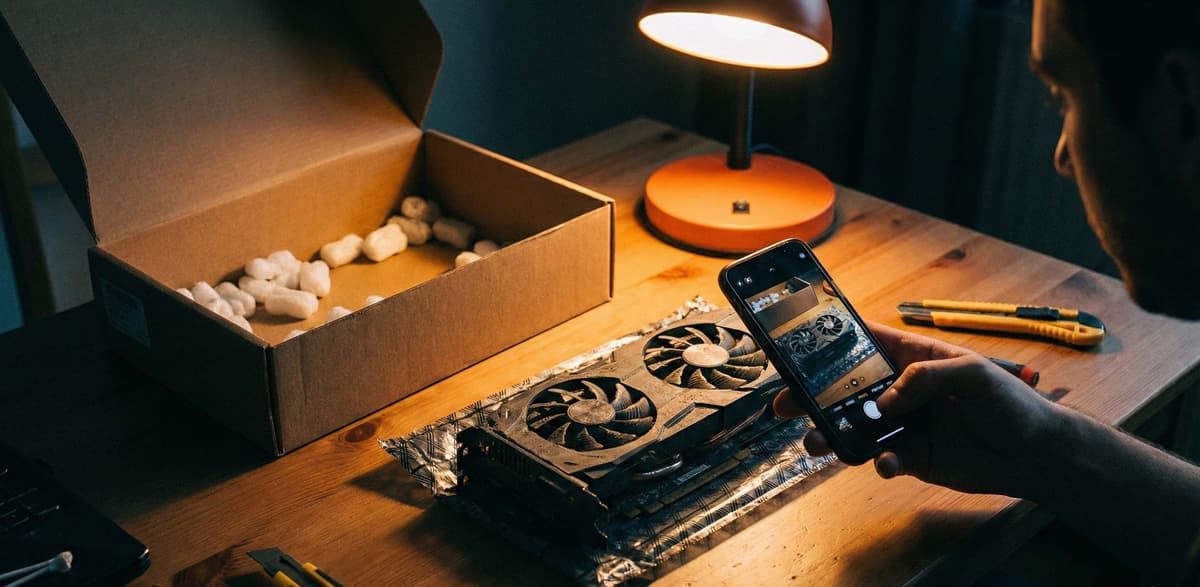
Record the unboxing and condition before you install.
If the GPU fails a test: what to do (without making it worse)
When a card fails, the biggest mistake is spending hours “tinkering” until you can’t prove what happened. Keep it simple, keep it documented, and keep the timeline tight.
Do this first
- Take photos/video of the issue (artifacting, crashes, temps) with timestamps if possible.
- Return settings to stock (no overclocks/undervolts) and re-test once.
- Stop if it repeats—don’t keep hammering a failing card.
Avoid these buyer mistakes
- Don’t disassemble the GPU “to check thermal paste” unless you’re happy losing leverage.
- Don’t accept endless troubleshooting while a dispute window runs out.
- Don’t keep power-cycling a system that’s hard rebooting under load.
UK buyer reality: proof, timelines, and recourse
Testing is not just for peace of mind—it’s for evidence. Clear proof of model, condition, and stability gives you the best chance of a clean resolution if the item is not as described.
What to keep
- Listing screenshots (model, condition notes, included accessories).
- Photos of packaging and the GPU as received.
- One or two short videos showing the failure behaviour.
A simple rule
If a seller can’t provide basic proof before purchase, and you can’t test quickly after purchase, the deal isn’t “cheap”—it’s just shifting risk onto you.
Want the full UK safety checklist (messages to send, red flags, and arrival tests)? Use: buy used GPUs in the UK.
Buy with proof, then test fast
If you treat used GPU buying like an inspection—proof first, quick tests second—you’ll avoid most of the pain. When you’re ready to browse, start with graphics cards and filter by what fits your build.
FAQ (snippet-friendly)
What is the quickest way to test a used GPU before buying?
Confirm the exact model and VRAM in software, run a 3–5 minute GPU load test, watch temperatures/clocks, check for artifacts, and verify at least one display output works reliably.
What should I ask the seller to prove a used GPU works?
Ask for clear photos (front/back/PCIe edge) and a screenshot or short video showing the exact model + VRAM and a load test with temperatures and clocks visible.
How do I know if a used graphics card is failing?
Common signs include artifacting (sparkles or blocks), black screens under load, driver crashes/resets, overheating, and fans that grind or stall.
How long should I stress test a used GPU after it arrives?
Do a short test immediately, then run 15–30 minutes of sustained load in the first 24 hours. Add a real game session because some faults only show up in specific workloads.
Is it better to collect a used GPU in person in the UK?
Often yes, because you can verify the GPU runs before you leave. If collection testing isn’t possible, make sure you can test quickly on arrival and keep evidence.
Advertisement