How to Clean Used PC Parts: Step-by-Step Guide
Advertisement
Buying used PC parts in the UK is one of the smartest ways to build a capable machine without paying new-retail prices. But second-hand hardware arrives with history: dust, old thermal paste, oxidised contacts, and sometimes mysterious residue. Knowing how to clean used PC parts properly before installation is what separates a build that runs cool and stable from one that throttles or fails within weeks. This guide walks you through every major component — GPU, CPU, motherboard, RAM, case, and PSU — step by step.
Whether you just picked up a bargain bundle on Koukan or you have components sitting in storage, this process takes an afternoon and can meaningfully extend the lifespan of every part. Take your time, work methodically, and you will end up with hardware that looks and performs almost like new.
Safety First: ESD and Electrical Precautions
Before you touch a single component, set up your workspace safely. Electrostatic discharge (ESD) is invisible but can permanently damage sensitive silicon in an instant.
Critical Safety Rules
- Wear an anti-static wrist strap connected to an earthed point (or the metal chassis of an unplugged PSU) whenever handling bare PCBs, CPUs, or RAM.
- Work on an anti-static mat if possible, or at minimum a non-carpeted hard surface. Avoid working on fluffy carpets — they generate massive static charges.
- Never use water directly on any electronic component. IPA (isopropyl alcohol) is the correct cleaning solvent because it evaporates quickly and leaves no conductive residue.
- Dry everything completely before powering on. If you have used IPA on contacts or a heatsink, wait at least 15–20 minutes at room temperature before reconnecting power.
- Never clean a PSU internally. Capacitors inside a PSU can hold lethal charge even after it has been unplugged for hours. Compressed air from the exterior only.
A £5–£8 anti-static wrist strap from Amazon UK is cheap insurance against destroying a £150+ GPU or CPU. Do not skip it.
Tools and Supplies You Need
You do not need specialist equipment. Everything below is available from UK retailers:
Isopropyl Alcohol (IPA) — 90%+
Amazon UK, Toolstation, Screwfix. 500 ml is plenty. Do NOT use rubbing alcohol below 90%.
Compressed Air Can
Amazon UK or Toolstation. Use 400–600 ml cans. Hold upright to avoid propellant spray.
Soft Anti-Static Brush
A clean, dry paintbrush (25–30 mm) works well. Dedicated ESD brushes available on Amazon UK.
Lint-Free Cloths / Microfibre
Camera cleaning cloths from Amazon UK. Standard microfibre cloths sometimes leave fibres — use lint-free where possible.
Cotton Swabs
Standard cotton buds. For precision IPA application to contacts and chip edges.
Thermal Paste
Arctic MX-6 or Thermal Grizzly Kryonaut from Amazon UK. ~6–8 grams per 100 g tube.
Thermal Paste Remover
ArctiClean 1 & 2 set (Amazon UK) or plain 99% IPA works for most dried pastes.
Phillips #1 and #0 Screwdrivers
For removing GPU shrouds and heatsinks. iFixit kits are widely available in the UK.
Starter Kit Cost Estimate (UK, 2026)
IPA 500 ml (£4–6) + compressed air can (£5–8) + anti-static brush (£3–5) + wrist strap (£5–8) + cotton swabs (£1–2) + thermal paste (£7–12) = roughly £25–41 total. Most of these items last for multiple cleaning sessions.
How to Clean a Used GPU
A used GPU is typically the most dust-laden component you will receive. Fans, heatsink fins, and the PCB itself accumulate years of debris. Follow this sequence:
Step 1 — External Dust Removal
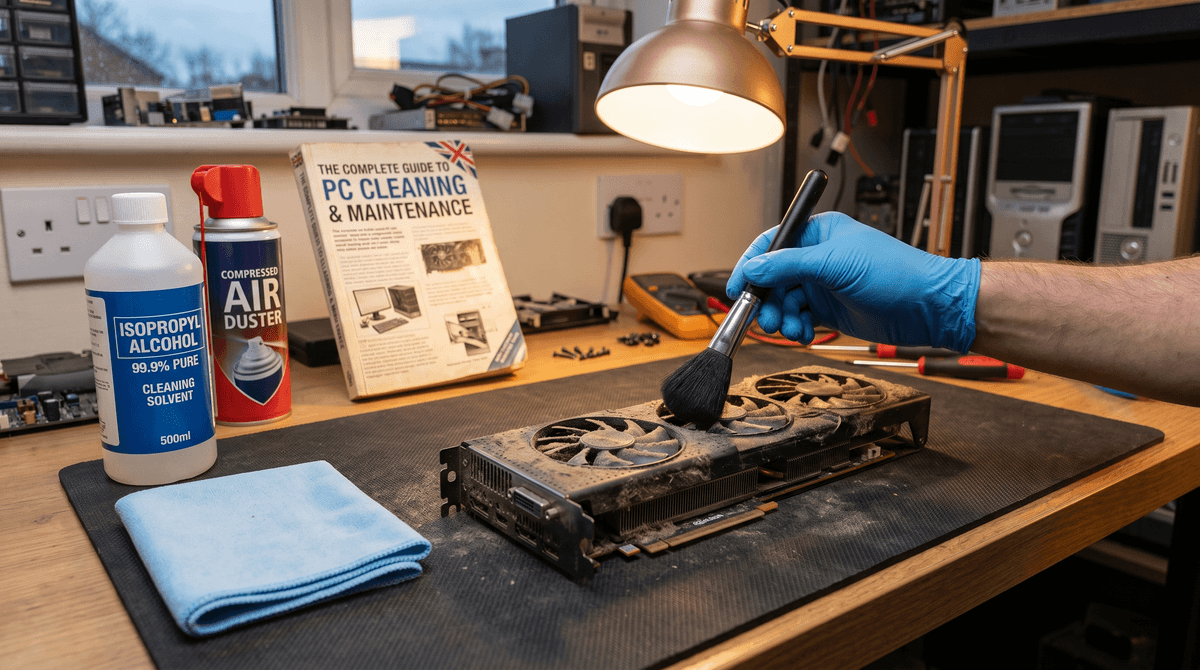
- Hold the GPU horizontally over a bin or outside. Use short bursts of compressed air — never sustained blasts — to dislodge loose dust from the fan shroud, heatsink fins, and PCIe connector area.
- Hold fans stationary with your finger or a cocktail stick before blasting. Spinning fans at high RPM from compressed air can damage bearings and, in rare cases, generate back-EMF that could spike sensitive components.
- Use the anti-static brush to sweep dust out of heatsink fin channels that compressed air cannot fully reach.
Step 2 — Fan Cleaning
- Dampen a lint-free cloth or cotton swab with IPA. Gently wipe each fan blade on both sides to remove compacted dust and grease residue.
- Check that each fan spins freely by hand. Any grinding or resistance indicates a bearing that is worn or gunked up. A drop of sewing machine oil on the centre spindle (after peeling back any sticker) can help, but replacement fans are often inexpensive.
Step 3 — PCIe Gold Contacts
- Dip a cotton swab in IPA (not soaked — wrung to damp). Gently rub along the gold PCIe contacts in a single direction, not back and forth. Discolouration, oxidisation, or dried flux will wipe away.
- Allow contacts to air-dry for a full 15 minutes before installation.
Step 4 — Thermal Paste Replacement
If the GPU is over three years old, or if you notice it running hot (above 85 °C under load), replacing the thermal paste is worthwhile. This requires removing the heatsink — check iFixit for your specific card model before attempting.
- Remove the heatsink screws in a cross pattern to avoid warping the PCB. Most coolers use Phillips #0 or #1 screws.
- Lift the heatsink gently. Old paste will often come away in grey or silver flakes.
- Apply a small amount of ArctiClean 1 (or 99% IPA) to a cotton swab and clean all old paste off both the GPU die and the heatsink contact plate. Follow with ArctiClean 2 (or a clean dry swab) to remove any residue.
- Apply a pea-sized (roughly 3–4 mm diameter) blob of fresh thermal paste to the centre of the GPU die. Reinstall the heatsink and tighten screws evenly in a cross pattern.
What NOT to Do on a GPU
- Never use water, WD-40, or household cleaning sprays on any part of a GPU.
- Never use abrasive pads or rough cloths on the PCB surface or contacts.
- Never use a standard vacuum cleaner directly against PCB components — static discharge risk.
- Never bend or flex the PCB. Large GPUs are surprisingly fragile at the corners.
How to Clean a Used CPU
Used CPUs are generally robust but almost always arrive with dried thermal paste on the Integrated Heat Spreader (IHS). Cleaning this correctly ensures a good thermal interface with your cooler.
Removing Old Thermal Paste
- Place the CPU face-up on an anti-static surface. Use a dry cotton swab to scrape off the bulk of any thick or flaky paste first.
- Dampen a fresh cotton swab with IPA. Wipe across the IHS in straight, overlapping strokes. Replace swabs as they grey out. For particularly stubborn silver-compound paste, a brief soak with IPA and 30 seconds of dwell time softens it.
- Finish with a final clean swab dampened in IPA to remove any remaining residue. The IHS should be uniformly metallic with no grey film.
Inspecting Pins and Pads
The critical difference between socket types changes what you need to check:
- Intel LGA (Land Grid Array — e.g. LGA 1700, LGA 1851): The CPU has flat copper pads; the socket has the pins. Inspect the CPU pads for scratches or burn marks. Inspect the motherboard socket under a desk lamp for bent pins — even one bent pin can prevent POST.
- AMD AM5 (LGA): Similar to Intel — pads on chip, pins in socket. Inspect the socket pins carefully using a bright light and a magnifying glass if available.
- Older AMD AM4 (PGA — Pin Grid Array): Pins are on the CPU itself. Check for bent, broken, or missing pins on the underside. Minor bends can sometimes be carefully straightened with a mechanical pencil (with the lead retracted) or a thin credit card edge.
IHS Cleaning Tip
The nickel-plated IHS scratches easily. Always use cotton swabs — never anything abrasive. After cleaning you should see a consistent metallic sheen across the entire contact surface. Any remaining haze suggests residue that will add thermal resistance.
How to Clean a Used Motherboard
Motherboards are complex and require a methodical approach. Work in good light so you can spot corrosion, burnt components, or debris in slots.
Dust Removal
- Hold the motherboard vertically over a bin. Use compressed air in short bursts, working from the centre outward. Pay particular attention to the VRM heatsinks, chipset heatsink, and the area around the CPU socket.
- Use the anti-static brush to dislodge any dust that is trapped in the dense fin arrays of VRM coolers or around capacitors.
Cleaning Expansion Slots
- Fold a lint-free cloth to a thin edge and dampen lightly with IPA. Drag it gently along each PCIe slot and each RAM slot to remove debris and oxidisation from the contacts.
- Cotton swabs dipped in IPA work well inside the M.2 slot channels. Insert gently and wipe along the length.
- For the 24-pin ATX connector and CPU power connector headers, use a dry brush first, then IPA on a swab if contacts look dull.
Checking for Corrosion
Hold the board at an angle under a desk lamp and look for:
- Green or white powder on or around capacitors — this is corrosion and is a serious warning sign. Minor surface oxidation on ground planes can sometimes be cleaned with IPA, but extensive corrosion often means the board is not worth using.
- Burn marks or darkened PCB areas — these indicate a past electrical fault and the board should be avoided.
- Bulging or leaking capacitors — any capacitor that is swollen at the top or has residue around its base needs replacement or means the board should be retired.
VRM Area Warning
Be especially careful cleaning around the VRM (Voltage Regulator Module) area near the CPU socket. Small MOSFETs and inductors are densely packed here. Use only compressed air and a brush — never apply IPA directly to this area unless you are targeting a specific dirty contact, and allow full drying time before power-on.
How to Clean Used RAM
RAM is one of the easiest components to clean. The primary concern is the gold edge contacts, which can oxidise and cause boot failures or instability.
Gold Contact Cleaning
- IPA method (preferred): Dampen a lint-free cloth or cotton swab with IPA. Wipe along the gold contacts in a single direction — do not scrub back and forth. The gold should look uniformly bright after cleaning.
- Pencil eraser method (for stubborn oxidation): A clean, soft white pencil eraser can gently abrade surface oxidation from gold contacts. Rub in one direction very lightly, then follow up immediately with an IPA wipe to remove eraser debris. This method removes a tiny amount of gold plating each time, so use it sparingly.
- Allow contacts to dry fully — typically 10–15 minutes — before installing.
When to Give Up on a RAM Stick
If contacts are deeply pitted, show black burn marks, or if the RAM fails MemTest86 after cleaning, the stick is not recoverable. DDR4 RAM in particular is inexpensive used — a replacement 8 GB stick can be found for £10–20 on Koukan.
Pro Tip: Run MemTest86 After Cleaning
Once cleaned and installed, boot from a USB drive running MemTest86 (free at memtest86.com) and run at least two passes. This takes 45–90 minutes per 16 GB but is the definitive test that your RAM is error-free before you install an OS.
How to Clean a Used PC Case
Cases accumulate dust in every crevice, especially around dust filters, fan mounts, and the cable management bay. A thorough clean takes less than an hour and makes a significant difference to long-term airflow.
Dust Filters
- Remove all magnetic or slide-out dust filters. Most can be tapped over a bin to release the bulk of dust.
- Wash with warm water and a drop of washing-up liquid — this is one of the few places water is appropriate. Rinse thoroughly and allow to dry completely (at least 2 hours) before reinstalling. Never reinstall a damp filter.
Case Fans and Mesh Panels
- Hold case fans stationary and blast with compressed air. Follow up with an IPA-dampened cloth on each blade.
- For mesh front panels or side panels, use compressed air from the inside pushing outward — this ejects embedded dust rather than compacting it further.
- Wipe down the interior surfaces with a microfibre cloth dampened very lightly with IPA. The steel or aluminium interior can tolerate IPA without issue.
Cable Management Bay
The rear cable routing bay is often where lint, pet hair, and debris accumulate. Use compressed air to clear it, then a brush to sweep out corners. Cut any old zip ties and remove any orphaned cables from previous builds.
Products to Avoid on Cases
Avoid bleach-based sprays, acetone, or any solvent stronger than isopropyl alcohol on painted or powder-coated steel panels — these will strip the coating. For tempered glass side panels, use a camera cleaning cloth and a tiny drop of glass cleaner on the cloth (not sprayed directly).
How to Clean a Used PSU
The PSU (Power Supply Unit) is the one component you clean from the outside only. There are no user-serviceable parts inside a PSU — and there are serious safety reasons for keeping it that way.
What You Can Do
- Point the PSU fan-side down over a bin. Use compressed air through the fan grille to blow dust out of the interior. The fan will spin — this is fine at this stage. Work in short 2–3 second bursts.
- Wipe the exterior casing with an IPA-dampened cloth. The metal housing can tolerate IPA without issue.
- Clean the modular connector ports (if applicable) with a dry brush to remove debris, then a cotton swab with IPA for any that look corroded or discoloured.
Never Open a PSU
Even after being unplugged for 24+ hours, large electrolytic capacitors inside a PSU can hold hundreds of volts. Contact with a charged capacitor can be fatal. There is no safe DIY repair or deep clean of PSU internals. If a PSU is faulty, replace it — do not attempt to service it.
What to Inspect Externally
- Check modular cables for fraying, burn marks, or melted connectors — replace if found.
- Listen and feel for fan wobble — a loud or wobbly PSU fan can indicate bearing wear.
- Check the cable labelling and ratings on the unit label (typically on the side). Cross-reference against your system power draw before use.
If you are unsure whether a used PSU is trustworthy, read our guide on buying used PSUs in the UK before installing it in your build.
Next Step: Test Before You Build
Once every component is clean, the final step before assembly is testing. Bench-testing outside the case lets you diagnose issues without disassembling a completed build. Our guide on how to test used PC parts covers everything from POST tests to stress-testing tools, so you can be confident in your components before a single screw is tightened into the case.
Not sure which components are safe to buy second-hand in the first place? Our guide to which PC parts are safe to buy used breaks down the risk tier for every component category.
Frequently Asked Questions
Is IPA safe to use on PCBs?
Yes — isopropyl alcohol at 90%+ concentration is safe on printed circuit boards. It dissolves flux, oils, and oxidation without leaving a conductive residue, making it the standard cleaning solvent in electronics manufacturing. Avoid IPA concentrations below 90% as the higher water content increases drying time and risks leaving residue.
Can I wash a dust filter in the sink?
Yes. Magnetic mesh dust filters can be rinsed under warm water with a small amount of washing-up liquid. Rinse thoroughly to remove all soap residue and allow to air-dry for at least 2 hours before reinstalling. Never reinstall a damp filter — moisture drawn into the case can condense on cold components.
How often should I replace thermal paste?
On a used component, replace the thermal paste immediately if it is dried, cracked, or more than 3–4 years old. In regular use, thermal paste degrades over 3–5 years depending on quality. High-end pastes like Thermal Grizzly Kryonaut last longer than budget compounds. If temperatures have crept up 5–10 °C compared to previous readings, repasting is a good first step.
Can I use a household vacuum cleaner to clean PC parts?
No. Standard household vacuum cleaners generate significant static electricity that can damage or destroy sensitive electronic components. If you need to vacuum, use an anti-static ESD vacuum specifically designed for electronics. For most cleaning tasks, compressed air achieves better results with no risk.
What concentration of IPA should I use?
Use 90% or higher. At lower concentrations the water content is too significant and increases drying time. 99% IPA (available on Amazon UK) is ideal. Standard pharmacy rubbing alcohol in the UK is often 70% — this is too dilute for electronics cleaning.
The GPU I bought smells burnt — is it safe to clean and use?
A burnt smell from a GPU is a serious warning sign. Before cleaning, inspect the PCB closely for burnt or blackened areas around VRMs, capacitors, or the power connector. If you find physical burn damage, do not install the GPU — the damage is likely to manifest as instability or component failure under load. Contact the seller about a return.
Advertisement