How to Upgrade Your Steam Deck SSD (2230 M.2 Guide, Tools & Safe Sourcing in the UK)
Advertisement
Whether you bought a base 64GB eMMC Steam Deck LCD for £180 or scored a 512GB Steam Deck OLED second-hand, modern AAA games (like Call of Duty, Baldur's Gate 3, or Forza Horizon 5) frequently exceed 120GB to 160GB each. MicroSD cards offer convenient expansion, but loading times and shader cache compilation on flash cards are noticeably slower than internal NVMe storage.
Upgrading the internal solid-state drive is the single most impactful upgrade you can perform on Valve's handheld. With fast 1TB and 2TB M.2 2230 NVMe drives readily available in the UK for £55 to £130, you can quadruple your storage in less than 20 minutes with basic household screwdrivers.
Recommended M.2 2230 SSDs in the UK (2026)
You must buy an M.2 2230 form factor (30mm length). Standard 2280 desktop drives will NOT fit:
| Drive Model | Flash Technology | Power Profile | Typical UK Price | Recommendation |
|---|---|---|---|---|
| Corsair MP600 Micro / Core Mini | TLC / QLC | Low (3.3V 2.5A peak) | £65 (1TB) / £120 (2TB) | Best balance of UK availability & warranty |
| WD Black SN770M 2230 | BiCS5 112-Layer TLC | Moderate (Fast PCIe 4.0) | £75 (1TB) / £140 (2TB) | Fastest sequential load times |
| Kioxia BG4 / BG5 (OEM Pull) | Toshiba BiCS TLC | Ultra-low power envelope | £40 (512GB) / £60 (1TB) | Sensational budget choice from CeX/eBay |
| Sabrent Rocket 2230 | Micron 176-Layer TLC | Efficient power profile | £70 (1TB) / £135 (2TB) | Premium controller thermals |
For SSD health verification techniques, consult our guide on Checking Used SSD Health and SMART Telemetry.
Tools You Will Need
- Phillips #0 or #1 Precision Screwdriver (LCD model): Uses self-tapping screws into plastic. Use gentle pressure to avoid stripping.
- Torx T6 Screwdriver (OLED model): Valve upgraded the OLED model to durable machine-threaded Torx T6 screws into metal inserts.
- Plastic Prying Tool / Guitar Pick: Never use metal pry tools on the plastic shell clips.
- USB Flash Drive (16GB+) + Type-C Adapter: For flashing the official SteamOS recovery image.
The 6-Step Hardware Swap Procedure
Step 1: Put the Deck into Battery Storage Mode
Boot the Deck into BIOS (Hold Volume Up + Power). Navigate to Setup Utility → Power → Battery Storage Mode. The device will shut down and isolate the battery, preventing accidental electrical shorts when opening.
Step 2: Eject MicroSD & Remove 8 Rear Screws
Remove your MicroSD card. Unscrew the 8 rear screws (4 long center screws, 4 short outer edge screws on LCD; 8 uniform Torx T6 on OLED). Keep them organized.
Step 3: Pop the Rear Shell Clips
Insert your plastic pry pick near the R1/L1 shoulder trigger buttons. Gently slide around the perimeter until the internal snap clips disengage. The back shell lifts off cleanly.
Step 4: Remove Metal EMI Shield & Disconnect Battery
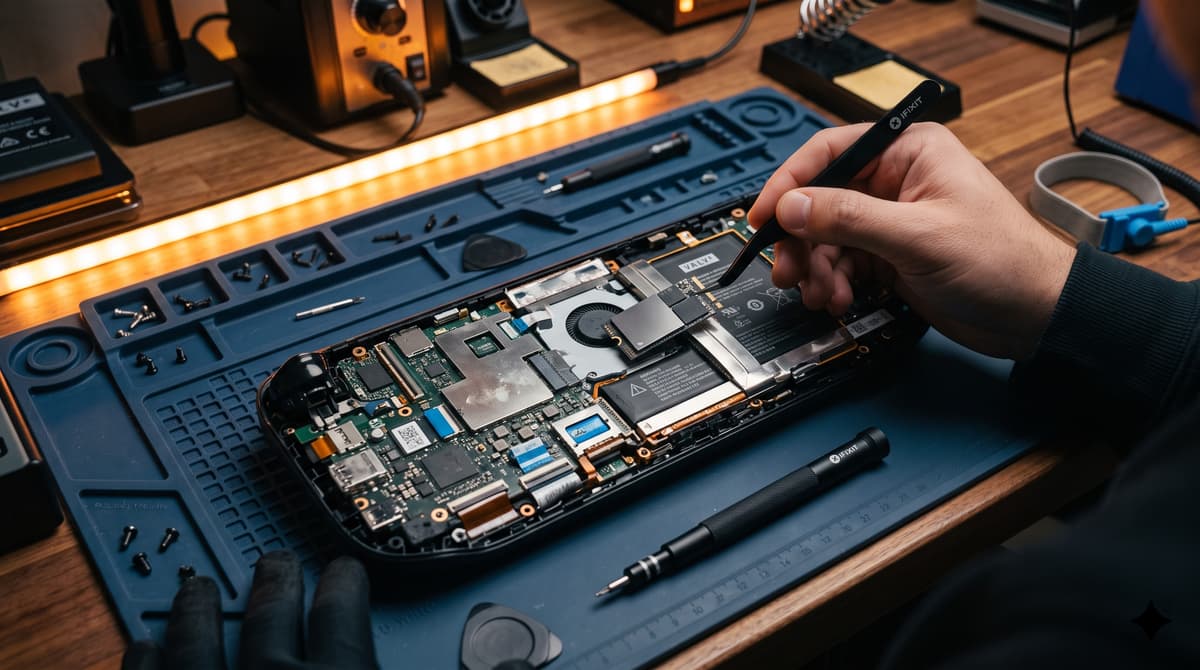
Remove the silver EMI metal shield (on LCD, one screw is hidden beneath a silver foil sticker). Before touching the SSD, gently pull the battery connector ribbon cable toward the bottom of the device to cut all power.
Step 5: Swap the SSD & Re-use the Foil Shield Sleeve
Unscrew the single M.2 retaining screw. Slide out the factory SSD. Crucial: Slide off the silver metallic/mesh electromagnetic shield sleeve from the old drive and slip it over your new 2230 SSD! This sleeve prevents the SSD controller from generating high-frequency radio interference with the internal Wi-Fi/Bluetooth antenna.
Step 6: Reconnect Battery & Reassemble
Plug the battery cable back in, screw down the EMI shield, snap the back plate on, and tighten the 8 screws. Plug in the official 45W charger to wake the Deck from Battery Storage Mode.
Reimaging SteamOS onto the Fresh Drive
Your new drive is completely blank. Follow Valve's recovery procedure:
- Download the official SteamOS Recovery Image from Valve's website.
- Use BalenaEtcher or Rufus to flash the image to your USB flash drive.
- Insert the USB drive into the Steam Deck using a Type-C adapter or dock.
- Hold Volume Down + Power until you hear a chime to enter the Boot Manager.
- Select the USB drive from the boot menu. Once the recovery desktop loads, double-click “Reimage Steam Deck”.
Frequently Asked Questions
Does upgrading the SSD void Valve's warranty in the UK?
No. Under UK consumer protections and Valve's official policy, opening the Steam Deck does not void your statutory warranty. However, any physical damage caused by the upgrade process (such as a stripped screw or severed battery trace) is not covered.
Can I cut down a standard 2280 desktop SSD to fit?
Never attempt this! While YouTube videos showed people modifying 2242 or 2280 drives early on, modern 2230 drives are cheap and plentiful. Modifying larger drives risks cutting internal PCB trace layers, causes severe thermal hot spots, and draws excess battery current.
Will a faster PCIe 4.0 SSD drain the Steam Deck battery faster?
The Steam Deck M.2 slot operates at PCIe 3.0 x4 speeds. While a PCIe 4.0 drive will work seamlessly (backward compatible), high-performance drives like the SN770M consume roughly 0.5W to 1.0W more power during write bursts. The battery difference in gaming is negligible (under 3–5 minutes).
Source 2230 M.2 SSDs on Koukan
Trade tested 512GB, 1TB, and 2TB M.2 2230 drives with escrow buyer protection. Verified SMART health data and fast tracked UK postage.
Advertisement